
Connect your AI client to your Taskade workspace: projects, tasks, AI agents, automations and Taskade Genesis apps.
Paste this to your agent:
Set up Taskade for me. Read and follow https://www.taskade.com/SKILL.md
The hosted server is https://www.taskade.com/mcp. You install nothing. Your client opens a Taskade sign-in page once.
Claude Code
claude mcp add --transport http taskade https://www.taskade.com/mcpThen type /mcp, select the Taskade server, and sign in.
Codex
codex mcp add taskade --url https://www.taskade.com/mcp
codex mcp login taskade
Cursor

Or add this to ~/.cursor/mcp.json, then sign in from the MCP settings of Cursor:
{
  "mcpServers": {
    "taskade": {
      "type": "http",
      "url": "https://www.taskade.com/mcp"
    }
  }
}
VS Code

Or run:
code --add-mcp '{"name":"taskade","type":"http","url":"https://www.taskade.com/mcp"}'Claude (desktop and web)

Open Taskade AI in the Claude directory, connect it, and sign in to Taskade.
Any of these clients, from a terminal
npx @taskade/cli plug <client>The client is claude-code, codex, cursor, vscode or claude-desktop. The CLI shows the change and asks before it writes anything.
ChatGPT, Windsurf, a client with no sign-in page, and a client that runs only local servers: see the setup for each client.


Taskade runs the hosted server. This repository does not build it. Most people need only the hosted server.
| Hosted server | Local package (@taskade/mcp-server) |
|
|---|---|---|
| Address or command | https://www.taskade.com/mcp |
npx -y @taskade/mcp-server |
| Sign-in | OAuth in your browser. A client with no OAuth sends a personal access token in the Authorization: Bearer header. |
A personal access token in the TASKADE_API_KEY environment variable |
| Install | None | Node.js 18 or later. Your client starts the server on your computer over stdio. |
| What it can do | Read and change projects, tasks, custom fields and AI agents. Prompt an agent and attach knowledge to it. Edit the source of a Taskade Genesis app. Run an automation that starts "When asked", and read its runs. Publish a new version of an app kit. | Read and change projects, tasks, custom fields, AI agents and media through REST API v1. Generate an agent from a prompt, turn on public agent access, delete media, prompt an agent, and manage the legacy webhook subscriptions. It cannot edit app source. |
| Plan | Every paid Taskade plan | Any plan. Each tool keeps the access rules of the API call that it makes. |
| Use it when | Your client connects to remote servers. This is the case for most clients. | You need a REST API v1 operation that the hosted server does not expose. |
| Tool reference | Hosted tools | Local package tools |
To call another MCP server from Taskade, use the MCP Client connector in an automation. It runs on every plan. Help to choose: Which Taskade MCP do I want?
This repository holds:
- The Taskade agent plugin and its skills, a generated copy of taskade/skills.
- MCP Server (
@taskade/mcp-server): the local package. - OpenAPI Codegen (
@taskade/mcp-openapi-codegen): generate MCP tools from any OpenAPI spec, not only Taskade.
- Connect in one step
- Hosted server or local package
- Agent plugin
- Taskade MCP server: quick start (Claude, Claude Code, Codex, ChatGPT, Cursor, VS Code, Windsurf, other clients)
- Hosted tools
- Example prompts
- Troubleshooting
- Local package (stdio)
- Local package tools
- Why Taskade MCP?
- Agent Recipes
- OpenAPI Codegen
- What is Taskade?
- Privacy & Security
- Support
- Contributing
- License
The taskade plugin connects your AI tool to your Taskade workspace through the hosted server, and adds skills: a front door (taskade) and one skill for each job. The skills tell the agent which tools to call, in which order, and what to check before it reports back. The home of the skills is taskade/skills. It lists each skill, and it takes issues and pull requests for the skills. The skills/ folder of this repository holds a generated copy of each release.
To start, paste this to your agent:
Set up Taskade for me. Read and follow https://www.taskade.com/SKILL.md
- Plan: MCP access is part of every paid Taskade plan (Starter and up). Sign in once with your Taskade account.
- What it does: the front door connects Taskade, shows what is in your workspace, changes projects, tasks, fields, AI agents and Taskade Genesis app files, and picks the project view that answers a question. The job skills plan a new Taskade Genesis app for Taskade EVE, check and fix an app, fix its first screen, make it safe to share, clone an app kit, turn a spreadsheet into a project or app, back up and publish an app, build and test an AI agent, turn the plan of a code repository into a project, write a status report, and write a Markdown or CSV file for import.
- What stays in Taskade: the plugin cannot build an app or create or edit an automation. For those jobs, it writes the request for Taskade EVE, and you start the build. For a new app, it gives you a link that fills in the request and starts nothing. You publish an app, choose who can use it, turn an automation On or Off, and connect a domain in Taskade.
| Host | Install |
|---|---|
| Claude Code | claude plugin marketplace add taskade/mcp, then claude plugin install taskade@taskade. Run /mcp, select taskade and sign in. |
| Codex | codex plugin marketplace add taskade/mcp, then codex plugin add taskade@taskade |
| GitHub Copilot CLI | copilot plugin install taskade/mcp |
| Gemini CLI | gemini extensions install https://github.com/taskade/mcp |
| VS Code | See below |
| Cursor | See below |
| Any other agent | npx skills add taskade/skills installs the skills from their home, and npx skills add taskade/mcp installs the copy in this repository. Both install the skills only. Then add the hosted server https://www.taskade.com/mcp to the agent and sign in (see the quick start). |
VS Code: turn on the chat.plugins.enabled setting. Then run Chat: Install Plugin From Source from the Command Palette and enter https://github.com/taskade/mcp.
Cursor: the Cursor plugin taskade (.cursor-plugin/) in this repository adds the same hosted server and skills.
Claude directory: the directory listing reads the plugin from plugins/taskade/. The other hosts read the root files. The sync of each release of taskade/skills writes skills/ and plugins/taskade/skills/ with the same files.
To add only the hosted server to Codex, run codex mcp add taskade --url https://www.taskade.com/mcp, then codex mcp login taskade.
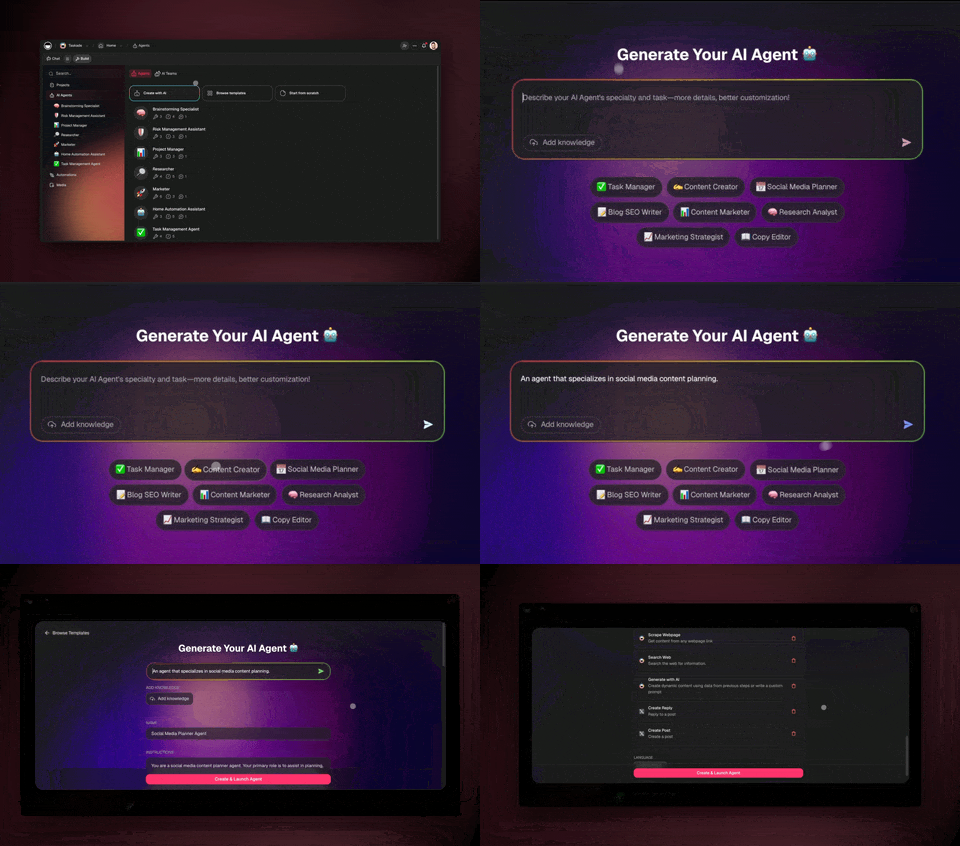
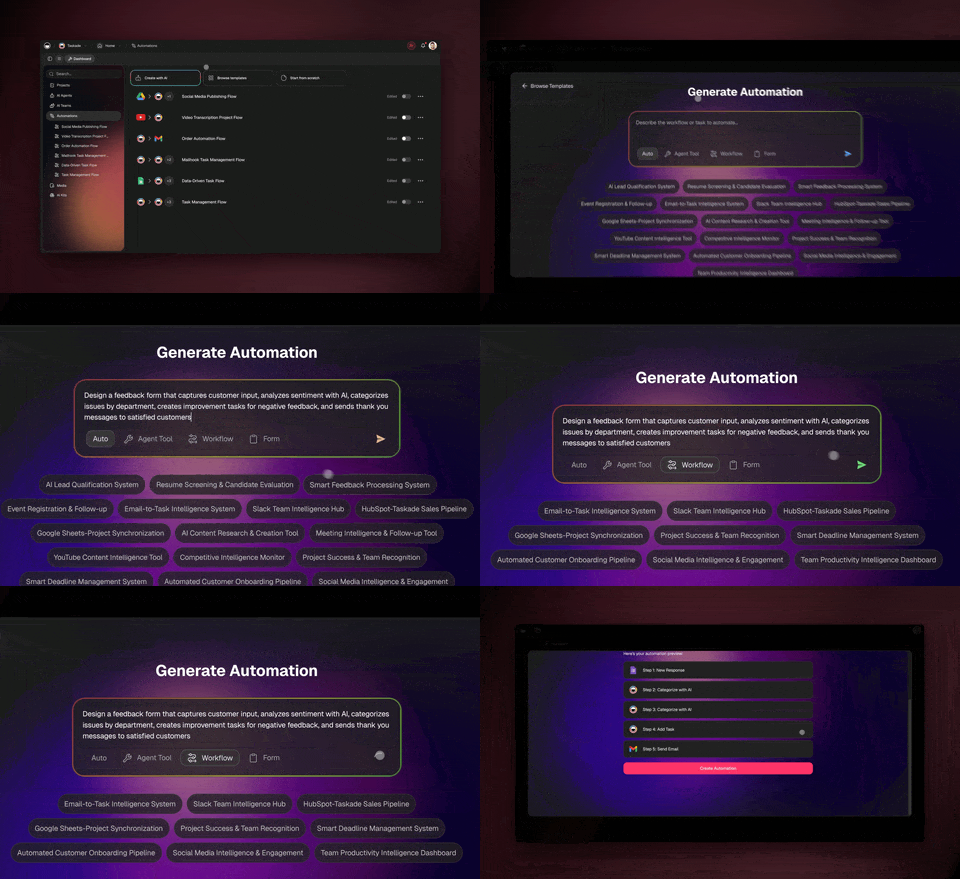
MCP-powered Taskade agent running inside Claude Desktop by Anthropic:

| Build Agents via MCP | Run Automations | Manage Projects |
|---|---|---|
 |
 |
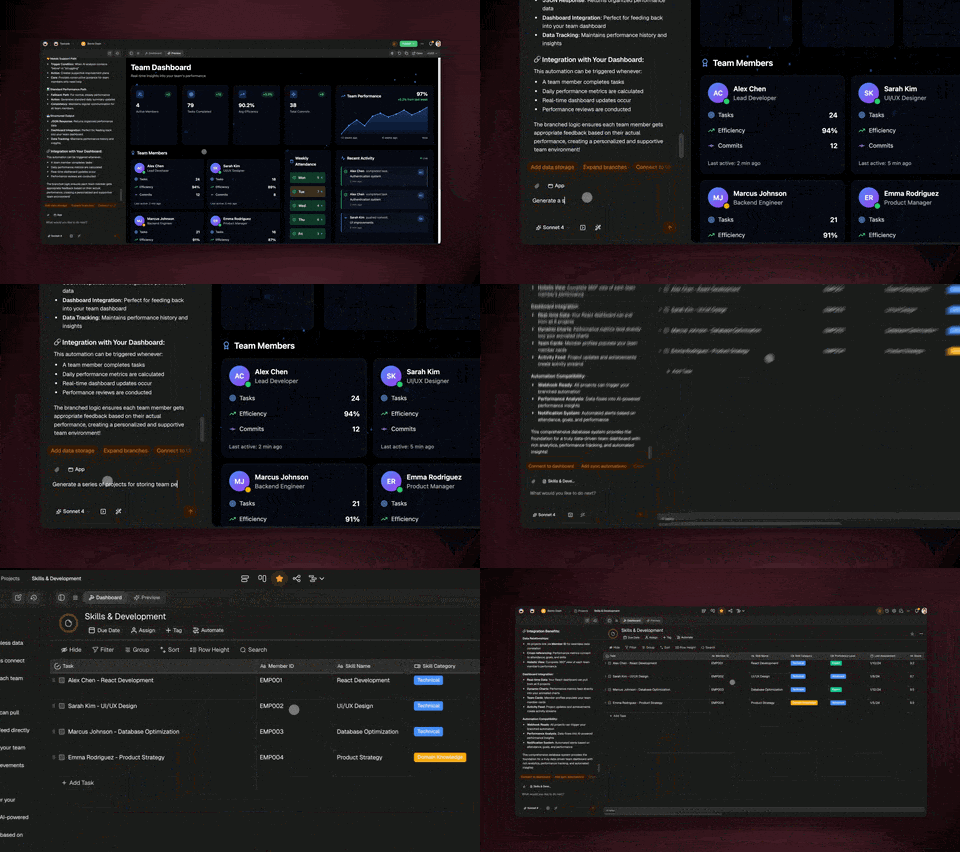 |
| Create, train, deploy AI agents from Claude/Cursor | List automations, run one, and read its runs | Full workspace management from your AI assistant (paid plans) |
Every client uses the same server and the same two sign-in options. The reference for each command below is the public guide Hosted Taskade MCP.
| URL | https://www.taskade.com/mcp |
| Transport | Streamable HTTP |
| Auth | OAuth 2.0 with PKCE and dynamic client registration. Your client opens a Taskade sign-in page once. A client that sends only headers uses Authorization: Bearer <personal access token>. |
| Plan | MCP access is part of every paid Taskade plan (Starter and up). A Free workspace does not show in list_spaces. |
| Discovery | https://www.taskade.com/.well-known/oauth-protected-resource/mcp |
An initialize request without a token returns 401 on purpose. The 401 tells your client where to start the OAuth sign-in.
The Claude directory lists the hosted server as Taskade AI. Open Taskade AI in the Claude directory, connect it, and sign in to Taskade.
To add the server by hand as a custom connector:
- In Claude, open Settings > Connectors.
- Click Add custom connector.
- Type
Taskadeas the name. Pastehttps://www.taskade.com/mcpas the URL. Click Add. - Click Connect, then sign in to Taskade and allow access.
The Claude labels can change between releases. If you do not see Connectors, search the Claude help for "custom connectors".
claude mcp add --transport http taskade https://www.taskade.com/mcpIn Claude Code, type /mcp, select the Taskade server, and sign in. To share the server with your team, commit this .mcp.json file at the root of the repository:
{
  "mcpServers": {
    "taskade": {
      "type": "http",
      "url": "https://www.taskade.com/mcp"
    }
  }
}
To add the server and the Taskade skills together, install the agent plugin.
codex mcp add taskade --url https://www.taskade.com/mcp
codex mcp login taskade
The login command opens Taskade in your browser. Sign in and allow access.
ChatGPT connects to a remote MCP server as a custom connector in developer mode. It uses OAuth only.
- In ChatGPT settings, turn on developer mode for apps and connectors.
- Create a connector. Type
Taskadeas the name andhttps://www.taskade.com/mcpas the server URL. - Select OAuth as the authentication. Sign in to Taskade and allow access.
Developer mode is available only on some ChatGPT plans, and its labels change often.
Select Add to Cursor in Connect in one step, or add this to ~/.cursor/mcp.json (all projects) or .cursor/mcp.json (one project):
{
  "mcpServers": {
    "taskade": {
      "type": "http",
      "url": "https://www.taskade.com/mcp"
    }
  }
}
Save the file. Open the MCP settings of Cursor, find taskade, and sign in when Cursor asks.
Select Install in VS Code in Connect in one step, or run:
code --add-mcp '{"name":"taskade","type":"http","url":"https://www.taskade.com/mcp"}'You can also add the server to .vscode/mcp.json in your workspace. The key is servers, not mcpServers:
{
  "servers": {
    "taskade": {
      "type": "http",
      "url": "https://www.taskade.com/mcp"
    }
  }
}
Start the server from mcp.json, and sign in when VS Code asks. Use the Taskade tools in Copilot Chat agent mode.
Add this to ~/.codeium/windsurf/mcp_config.json:
{
  "mcpServers": {
    "taskade": {
      "serverUrl": "https://www.taskade.com/mcp"
    }
  }
}
If Windsurf does not open a sign-in page, add the headers block from the next section.
A client that cannot do OAuth sends a Taskade personal access token as a Bearer token. Create the token in Taskade Settings > API.
{
  "mcpServers": {
    "taskade": {
      "type": "http",
      "url": "https://www.taskade.com/mcp",
      "headers": {
        "Authorization": "Bearer <paste-your-token-here>"
      }
    }
  }
}
Treat a config file that holds a token as a secret. Do not commit it. The token can do everything that your account can do.
A client that runs only local stdio servers can reach the hosted server through the mcp-remote bridge. It runs OAuth in your browser:
{
  "mcpServers": {
    "taskade": {
      "command": "npx",
      "args": ["-y", "mcp-remote", "https://www.taskade.com/mcp"]
    }
  }
}
Full guide: Hosted Taskade MCP.
Every hosted tool declares MCP tool annotations. Claude can run a read-only tool without a confirmation, and it asks before a tool that deletes or replaces data.
| Area | Read-only tools | Write tools |
|---|---|---|
| Workspaces | list_spaces, list_folders, list_media, list_templates, inspect_space |
write_file (Taskade Genesis app source in app/) |
| Automations | list_automations, get_flow_runs |
run_flow |
| Projects | list_projects, list_my_projects, get_project, read_project, list_fields, list_blocks, list_project_members, get_share_link |
create_project, create_project_from_template, copy_project, rename_project, set_field, complete_project, restore_project, enable_share_link |
| Tasks | list_tasks |
create_task, update_task, complete_task, uncomplete_task, delete_task, move_task, set_task_note, delete_task_note, set_task_date, delete_task_date, assign_task, unassign_task, set_task_field_value, delete_task_field_value |
| AI agents | list_agents, get_agent, list_conversations, get_conversation |
create_agent, update_agent, delete_agent, prompt_agent, add_knowledge_project, remove_knowledge_project, add_knowledge_media, remove_knowledge_media |
| App kits | list_my_kits |
publish_kit_version |
get_flow_runs: reads the recent runs of one automation, newest first. Each run has its status and times. A failed run also names the failed step and a short error. It needs edit rights on automations.run_flow: starts one run of an automation that is On and starts "When asked". Every run is real: it counts toward the monthly automation runs of the plan, and AI steps use credits.
The server also serves the resource taskade://getting-started, a short guide for the model. Taskade adds tools over time, and your client shows the current list after it connects. Each tool is described in the MCP toolset.
- A new app. The hosted server cannot build a new Taskade Genesis app. Your agent writes the request, and you start the build in Taskade with Taskade EVE.
- Automations. The hosted server cannot create or edit an automation. Taskade EVE does that inside Taskade.
- Publishing and access. You publish an app that is not live yet, and you choose who can use it, in Taskade.
- Media uploads. Upload a file with the REST API or the Action API.
The hosted server can edit the source of an existing app. On a live app, each write_file starts a new build, and the app publishes it by default.
- Weekly review. "List my Taskade workspaces, read the Q4 Roadmap project, and give me the open tasks grouped by assignee."
Tools:
list_spaces,list_projects,read_project. - Plan a launch. "Create a project called Website Launch in my Marketing workspace with tasks for copy, design, QA and launch day, and set the launch task to November 3."
Tools:
list_spaces,create_project,create_task,set_task_date. - Build a support agent. "Create an agent called Help Bot in my Support workspace, add the FAQ project as its knowledge, then ask it how a customer resets a password."
Tools:
create_agent,add_knowledge_project,prompt_agent. - Close out a sprint. "In the Sprint 42 project, mark every task that mentions 'shipped' as complete, then mark the project as completed."
Tools:
list_tasks,complete_task,complete_project. - Edit a Taskade Genesis app. "In my CRM app, read
app/src/App.tsxand change the page title to Acme CRM." Tools:inspect_space,write_file.
Run this command first. It changes nothing on your machine:
npx @taskade/cli doctorIt checks your Node.js version, sends a request with no sign-in to the server, reads the sign-in metadata, and lists the clients on your machine that have a taskade entry. With a personal access token in TASKADE_TOKEN, it also sends an MCP initialize and a tools/list request with that token. Each line starts with ok, fail or -- (skipped). A failed line gives the next step. A run with no token gives lines like these:
ok    The server answers. Without sign-in it returns 401 and names its sign-in metadata.
ok    Sign-in metadata: https://www.taskade.com/mcp/.well-known/oauth-protected-resource
ok    Authorization server: https://www.taskade.com/.well-known/oauth-authorization-server

--    TASKADE_TOKEN is not set, so the token check is skipped. Clients that sign in need no token.

Clients (read only):
--    Cursor: installed, no taskade server found.
      Next: npx @taskade/cli plug cursor
| What you see | Cause | Fix |
|---|---|---|
The client cannot connect to https://taskade.com/mcp |
The host has no www. That host answers 301 and points to https://www.taskade.com/mcp. The sign-in metadata names only the www address. |
Use https://www.taskade.com/mcp. |
401 with {"error":"Unauthorized"} before you sign in |
This is normal. Without a token, the server answers 401 with a WWW-Authenticate header that names its sign-in metadata. Your client reads it and opens the Taskade sign-in. |
Finish the sign-in. If no sign-in page opens, update the client, or send a personal access token (see other clients). |
401 with {"error":"Unauthorized"} from a client that sends a token |
The server found no token. It reads a token only from the Authorization header, in the form Bearer <token>. It ignores a token in another header, a token without Bearer, and a token in the URL. |
Send Authorization: Bearer <token>. |
401 with {"error":"Invalid or expired token"} |
The server read the token and refused it. The token is wrong or revoked. | Create a new token in Settings > API, and update the header. |
list_spaces returns no workspaces, or MCP access is not available on this workspace's current plan. |
The workspace is on the Free plan. The hosted tools need a paid plan, and list_spaces hides a Free workspace. The list also comes in pages, and one page can be empty while more pages remain. |
Page until hasNextPage is false. Upgrade the workspace at taskade.com/pricing, or pick a paid workspace. |
| The client runs only local stdio servers | The hosted server uses Streamable HTTP. | Connect through the mcp-remote bridge, or use the local package. |
| The agent does not see the Taskade tools after an install | The client has not loaded the new server, or the sign-in is not done. | Restart the client, or open its MCP list: /mcp in Claude Code, the MCP settings in Cursor, or start the server from mcp.json in VS Code. Then sign in. npx @taskade/cli doctor shows which clients have a taskade entry. |
Access denied: you are not a member of this space. |
Your account is not a member of the workspace. | Make sure that the workspace ID is correct, or ask for an invitation. |
| A tool returns "permission denied" | Your role in that workspace or project does not allow the action. | Ask a workspace owner for access. |
| The OAuth sign-in starts again and again | The browser is signed in to another Taskade account, or the stored credential is old. | Sign in to the right Taskade account in your browser. Remove the Taskade server from the client, then add it again. |
| Claude shows "Authorization with the MCP server failed" | The connector sign-in failed. | Remove the connector, add it again, and sign in to the correct Taskade account. |
The local package stops with TASKADE_API_KEY environment variable is not set. or TASKADE_API_KEY appears to be invalid (too short). |
The client did not pass a token to the local package. | Create a token in Settings > API, and set TASKADE_API_KEY in the env block of the client config. |
The full list of tool errors is in Troubleshooting of the hosted guide.
The MCP Inspector starts the local package and shows its tools. Check the Node.js version that its README asks for. This command opens the web UI, where you can list and call each tool:
npx @modelcontextprotocol/inspector -e TASKADE_API_KEY=your-api-key-here -- npx -y @taskade/mcp-serverFor a check in a terminal, the CLI mode prints the tool list as JSON and exits:
npx @modelcontextprotocol/inspector --cli -e TASKADE_API_KEY=your-api-key-here --method tools/list -- npx -y @taskade/mcp-serverThe tool list does not call the Taskade API. To test the token, call a tool such as workspacesGet. The Inspector stores the -e values in the keychain of your system, or in a file when no keychain is available. See its README.
If the problem continues, open an issue or email support@taskade.com.
Use the local package when you need a REST API v1 operation that the hosted server does not expose. Examples are generate an agent from a prompt, turn on public agent access, delete media, and the legacy webhook subscription tools (subscribeWebhook, unsubscribeWebhook). The package runs on your computer with npx and needs Node.js 18 or later. It calls the Taskade public API over the network with a personal access token. It does not edit Taskade Genesis app source. Guide: Workspace MCP.
Go to Taskade Settings > API and create a personal access token.
Add the server to the Claude Desktop config file, then restart Claude Desktop.
| OS | File |
|---|---|
| macOS | ~/Library/Application Support/Claude/claude_desktop_config.json |
| Windows | %APPDATA%\Claude\claude_desktop_config.json |
{
  "mcpServers": {
    "taskade": {
      "command": "npx",
      "args": ["-y", "@taskade/mcp-server"],
      "env": {
        "TASKADE_API_KEY": "your-api-key-here"
      }
    }
  }
}claude mcp add --transport stdio taskade --env TASKADE_API_KEY=your-api-key-here -- npx -y @taskade/mcp-serverAdd this to ~/.cursor/mcp.json (all projects) or .cursor/mcp.json (one project):
{
  "mcpServers": {
    "taskade": {
      "command": "npx",
      "args": ["-y", "@taskade/mcp-server"],
      "env": {
        "TASKADE_API_KEY": "your-api-key-here"
      }
    }
  }
}Add to ~/.codeium/windsurf/mcp_config.json (or Settings → Cascade → MCP → Add Server):
{
  "mcpServers": {
    "taskade": {
      "command": "npx",
      "args": ["-y", "@taskade/mcp-server"],
      "env": {
        "TASKADE_API_KEY": "your-api-key-here"
      }
    }
  }
}In VS Code, open the Cline MCP Servers panel → Configure MCP Servers and add:
{
  "mcpServers": {
    "taskade": {
      "command": "npx",
      "args": ["-y", "@taskade/mcp-server"],
      "env": {
        "TASKADE_API_KEY": "your-api-key-here"
      }
    }
  }
}Add .vscode/mcp.json to your workspace. VS Code uses the servers key. The ${input:…} value asks for the token on the first run, so the file holds no secret:
{
  "inputs": [
    {
      "type": "promptString",
      "id": "taskade_api_key",
      "description": "Taskade personal access token",
      "password": true
    }
  ],
  "servers": {
    "taskade": {
      "type": "stdio",
      "command": "npx",
      "args": ["-y", "@taskade/mcp-server"],
      "env": {
        "TASKADE_API_KEY": "${input:taskade_api_key}"
      }
    }
  }
}The npm package runs over stdio only. For a client that connects over HTTP, use the hosted server at https://www.taskade.com/mcp (see Taskade MCP server: quick start).
The local package has its own tool names. They map to the Taskade public API v1 and v2. The Workspace MCP guide has the same list.
| Tool | Description |
|---|---|
workspacesGet |
List all workspaces |
workspaceFoldersGet |
List folders in a workspace |
workspaceCreateProject |
Create a project in a workspace |
| Tool | Description |
|---|---|
projectGet |
Get project details |
projectCreate |
Create a new project |
projectCopy |
Copy a project to a folder |
projectComplete |
Mark project as completed |
projectRestore |
Restore a completed project |
projectMembersGet |
List project members |
projectFieldsGet |
Get custom fields for a project |
projectShareLinkGet |
Get the share link |
projectShareLinkEnable |
Enable the share link |
projectBlocksGet |
Get all blocks in a project |
projectTasksGet |
Get all tasks in a project |
listTasks |
List tasks in a project, with a filter for open or completed tasks (API v2) |
renameProject |
Rename a project (API v2) |
folderProjectsGet |
List projects in a folder |
| Tool | Description |
|---|---|
taskGet |
Get task details |
taskCreate |
Create one or more tasks |
createTask |
Create 1 to 20 tasks (API v2) |
taskPut |
Update a task |
taskDelete |
Delete a task |
taskComplete |
Mark task as complete |
taskUncomplete |
Mark task as incomplete |
taskMove |
Move a task within a project |
taskAssigneesGet |
Get task assignees |
taskPutAssignees |
Assign users to a task |
taskDeleteAssignees |
Remove assignees |
taskGetDate |
Get task due date |
taskPutDate |
Set task due date |
taskDeleteDate |
Remove task due date |
taskNoteGet |
Get task note |
taskNotePut |
Update task note |
taskNoteDelete |
Delete task note |
taskFieldsValueGet |
Get all field values |
taskFieldValueGet |
Get a specific field value |
taskFieldValuePut |
Set a text, number or Select field value |
setTaskFieldValue |
Set a text, number, Select or date field value (API v2) |
taskFieldValueDelete |
Delete a field value |
Create, manage, and publish autonomous AI agents with custom knowledge and tools.
| Tool | Description |
|---|---|
folderAgentGenerate |
Generate an AI agent from a text prompt |
folderCreateAgent |
Create an agent with custom configuration |
folderAgentGet |
List agents in a folder |
agentGet |
Get agent details |
agentUpdate |
Update agent configuration |
deleteAgent |
Delete an agent |
agentPublicAccessEnable |
Publish agent publicly |
agentPublicGet |
Get public agent details |
agentPublicUpdate |
Update public agent settings |
agentKnowledgeProjectCreate |
Add a project as agent knowledge |
agentKnowledgeMediaCreate |
Add media as agent knowledge |
agentKnowledgeProjectRemove |
Remove project from knowledge |
agentKnowledgeMediaRemove |
Remove media from knowledge |
agentConvosGet |
List agent conversations |
agentConvoGet |
Get conversation details |
publicAgentGet |
Get agent by public ID |
| Tool | Description |
|---|---|
folderProjectTemplatesGet |
List available project templates |
projectFromTemplate |
Create a project from a template |
| Tool | Description |
|---|---|
mediasGet |
List media files in a folder |
mediaGet |
Get media details |
mediaDelete |
Delete a media file |
| Tool | Description |
|---|---|
meProjectsGet |
List all your projects |
These tools add what the v1 API does not have: a conversation with an AI agent, and the legacy webhook subscriptions. For signed webhooks, use the Webhook Registration API.
| Tool | Description |
|---|---|
promptAgent |
Send a message to an AI agent and get its reply |
listConversations |
List an agent's conversations |
getConversation |
Get a conversation's messages |
subscribeWebhook |
Subscribe to real-time Taskade event webhooks |
unsubscribeWebhook |
Remove a webhook subscription |
Taskade MCP gives your AI assistant access to your workspace: projects, tasks, AI agents, knowledge, templates and automations. The hosted server works on every paid plan. Describe what you need in plain words, and the assistant calls the tools.
┌──────────────────────────────────────────────────────────┐
│                HOW TASKADE MCP WORKS                     │
└──────────────────────────────────────────────────────────┘

  You (in Claude/Cursor/Windsurf):
  "Create a support agent trained on our docs project"
                         ↓
  ┌──────────────────────────────────┐
  │     Taskade MCP Server           │
  │     projects, tasks, agents      │
  └──────────────────────────────────┘
       ↓              ↓            ↓
  folderCreateAgent  agentKnowledge  agentPublicAccess
  (creates agent)    (attaches docs)  (publishes it)
                         ↓
  Result: Live AI chatbot trained on your data
| What You Say | What Happens |
|---|---|
| "Show me all overdue tasks" | Reads projects → filters tasks → formats report |
| "Create a support agent trained on our docs" | Creates agent → attaches knowledge → publishes |
| "Set up next week's sprint from our template" | Copies template → populates tasks → assigns team |
| "Summarize the completed work in my Sprint project" | Reads completed tasks → generates a standup summary |
| REST API | MCP Server | |
|---|---|---|
| Setup | Write HTTP client, handle auth, parse JSON | Add https://www.taskade.com/mcp to your client and sign in |
| Interface | Code against endpoints | Natural language — describe what you need |
| Chaining | Manual orchestration | AI chains tools intelligently |
| Error handling | Write error handling code | AI interprets errors and retries |
Taskade MCP includes AI agent management (create, train, deploy agents), knowledge base training (attach docs, projects, media), and Taskade Genesis app editing (read and change the source of an app). This repository also holds OpenAPI codegen, which generates MCP tools from any API spec.
The recipes use the tool names of the local package. The hosted server has its own names (see Hosted tools).
Recipe 1: Daily Standup Summarizer
Problem: Team standup notes scattered across Slack, email, and docs.
You: "Check my Taskade workspace for yesterday's completed tasks,
      summarize them as a standup update, then create today's
      priority tasks based on what's still open."

Claude uses:
  1. meProjectsGet → find your active projects
  2. projectTasksGet → pull tasks from each project
  3. taskCreate → create today's priority tasks

Result: A formatted standup summary + fresh task list in Taskade.
Recipe 2: Knowledge Base Agent Builder
Problem: You have docs scattered across files and need an AI agent trained on them.
You: "Create an AI support agent called 'Help Bot' in my
      Customer Success folder, train it on our Documentation
      project, and publish it publicly."

Claude uses:
  1. workspaceFoldersGet → find "Customer Success" folder
  2. folderCreateAgent → create "Help Bot" with support instructions
  3. agentKnowledgeProjectCreate → attach Documentation project
  4. agentPublicAccessEnable → publish with shareable link

Result: Live AI chatbot trained on your docs, ready to embed.
Recipe 3: Sprint Planning Automation
Problem: Creating sprint projects manually every two weeks.
You: "Create a new sprint project from our 'Sprint Template',
      name it 'Sprint 2026-W15', move the top 10 backlog
      items into it, and assign them to the engineering team."

Claude uses:
  1. folderProjectTemplatesGet → find "Sprint Template"
  2. projectFromTemplate → create "Sprint 2026-W15"
  3. projectTasksGet → get backlog items
  4. taskMove → move top 10 tasks to new sprint
  5. taskPutAssignees → assign engineering team members

Result: Sprint ready to go, fully populated and assigned.
Recipe 4: Competitive Intelligence Agent
Problem: You need an agent that monitors competitors and reports findings.
You: "Generate an AI agent that researches our top 5 competitors.
      Train it on our Competitive Analysis project.
      Name it 'Market Intel Agent'."

Claude uses:
  1. folderAgentGenerate → generate agent from research prompt
  2. agentKnowledgeProjectCreate → connect Competitive Analysis project
  3. agentUpdate → refine instructions for research cadence

Result: AI research agent with domain knowledge, ready for briefings.
Recipe 5: Client Onboarding Pipeline
Problem: Each new client needs the same project structure, tasks, and materials.
You: "For our new client Acme Corp: create a project from
      the 'Client Onboarding' template, add tasks for
      kickoff meeting and SOW review, set due dates for
      the next 2 weeks, then share the project link."

Claude uses:
  1. projectFromTemplate → create "Acme Corp Onboarding"
  2. taskCreate → add kickoff, requirements, SOW tasks
  3. taskPutDate → set dates across next 2 weeks
  4. projectShareLinkEnable → generate share link

Result: Client onboarding project live and shareable.
Ask your AI assistant to manage your Taskade workspace:
- "Show me all my projects and their status"
- "Create a new project called Q1 Planning with tasks for each team"
- "Move all overdue tasks to the Backlog project"
- "Set due dates for all tasks in the Sprint project"
Build and deploy AI agents directly from your editor:
- "Create an AI agent called Customer Support Bot with knowledge from our docs project"
- "Generate an agent for code review using this prompt: ..."
- "Publish my agent publicly and give me the share link"
- "Add our API documentation project as knowledge to the agent"
Automate project creation from templates:
- "List all templates in my workspace"
- "Create 5 new client onboarding projects from the Client Template"
- "Copy the Sprint Retrospective project for this week"
Use our generator to build MCP tools from any OpenAPI spec — not just Taskade.
npm install --save-dev @taskade/mcp-openapi-codegen @readme/openapi-parserimport { dereference } from '@readme/openapi-parser';
import { codegen } from '@taskade/mcp-openapi-codegen';
const document = await dereference('your-api-spec.yaml');
await codegen({
path: 'src/tools.generated.ts',
document,
});Works with any OpenAPI 3.0+ spec. Generate MCP tools for your own APIs in minutes. The package README shows how to connect the generated tools to an MCP server.
Taskade (Y Combinator S19) is the AI-native workspace for building apps, deploying agents, and automating workflows from a single prompt. 150,000+ apps built.
- Taskade Genesis apps: build complete apps from prompts. Dashboards, CRMs, portals, forms, deployed instantly. Try it →
- AI Agents: custom agents with built-in tools, persistent memory, multi-agent teams, public embedding
- Automations: no-code workflow automation with 100+ integrations, branching, looping, filtering
- Real-time Collaboration: multiplayer workspace with chat, video, and multiple project views
- Templates: templates for project management, engineering, marketing, and more
- API & MCP: REST API v1, Action API v2, the hosted MCP server, this local package, the agent plugin, webhooks, OAuth 2.0
Links:
- App: taskade.com
- Create: taskade.com/create
- Taskade App Factory: taskade.com/apps · all categories
- Agents: taskade.com/agents
- Templates: taskade.com/templates
- Docs: taskade.com/docs · docs.taskade.com
- Hosted MCP guide: taskade.com/docs/mcp/hosted-mcp
- Workspace MCP guide (local package): taskade.com/docs/mcp/workspace-mcp
- Blog: taskade.com/blog
See open issues for planned features and improvements.
- Hosted server. Taskade runs it on
www.taskade.com. It reads and writes only the workspaces that your Taskade account can access and that are on a paid plan. The server does not read your chat history with the AI client.prompt_agentruns a Taskade agent, which can use its own tools, for example web search. - Agent plugin. The plugin holds skills (text files) and the address of the hosted server. It runs no code of its own. The
taskade-publish-appskill writes its backup of an app to a local folder (./taskade-backup/unless you name another one). Thetaskade-repo-to-projectskill reads a local code repository and sends no source code to Taskade. - Local package. Your API token authorizes the server to call the Taskade public API (
https://www.taskade.com/api/v1andhttps://www.taskade.com/api/v2) on your behalf. The package sends your data to no other service. Keep the token in an environment variable, and never commit it. - Privacy policy: taskade.com/privacy. Terms: taskade.com/terms.
- Security and vulnerability reports: see SECURITY.md.
- Help center: help.taskade.com
- Email: support@taskade.com
- Bugs and feature requests: GitHub issues
Help us improve MCP tools, OpenAPI workflows, and agent capabilities.
- Issues — Report bugs or request features
- Pull Requests — Contributions welcome
- Apps — Browse and clone community apps · categories
- Agent skill (
SKILL.md) · llms.txt index · Developer docs - Awesome Vibe Coding — curated vibe-coding tools, MCP servers, and agent skills
- Taskade Docs (source) — developer documentation and API reference
- Integration Kit — open-source Zapier/n8n actions & triggers
- Taskade on GitHub — org home and open-source repos
- Taskade: platform home, including Taskade Genesis, the AI app builder
MIT